
| Prev | Next |
Project Glossary
The Project Glossary view in WebEA allows you to view glossary terms which have been defined for the current project in Enterprise Architect.
For details on defining glossary terms, refer to the 'Project Glossary View' help topic.
Access
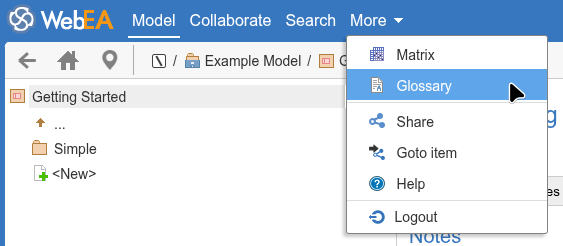
In WebEA's main header, click on the 'More' button, then 'Glossary'.
Using the Project Glossary View
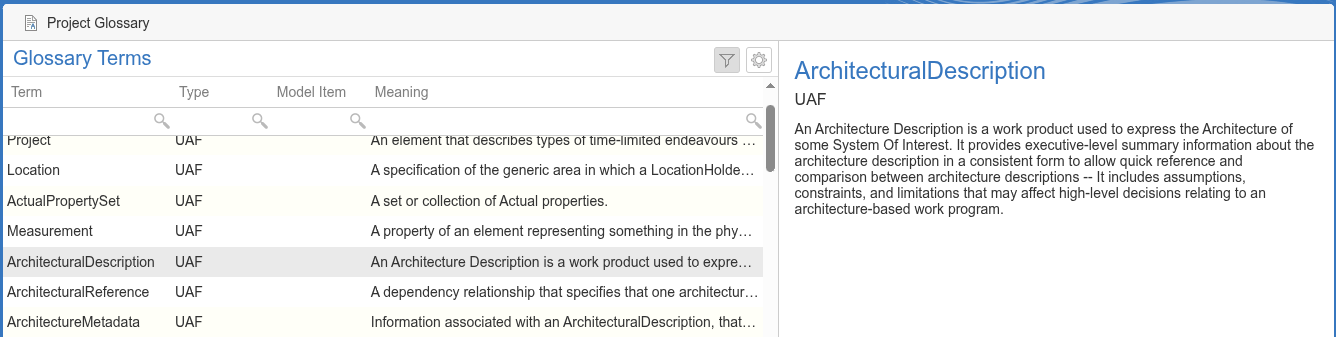
By default, the Glossary view will list all glossary terms. Select a term from the list to view its full description in the panel on the right.
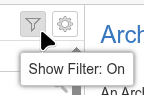
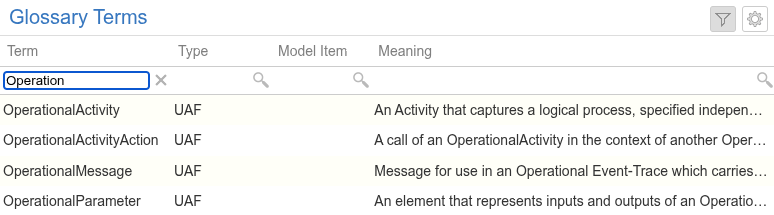
You can filter which items are displayed in the glossary list by enabling the 'Show ' option, then typing into one of the fields below the column headings.
Project Glossary Configuration
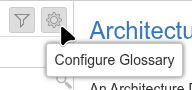
At the top of the Glossary Terms list, click on the 'Configure Glossary' button to access the Configure Glossary dialog.
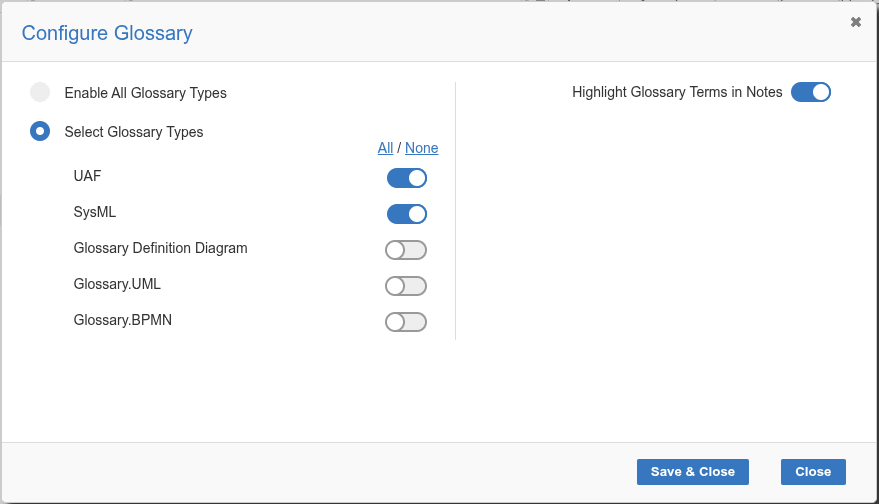
When defining Glossary Terms in Enterprise Architect, each term must be assigned a specific Glossary 'Type'. By default all types are enabled/shown in WebEA. You can enable/disable specific types by selecting the "Select Glossary Types" radio button, then toggle on/off each type as required. Note, the enabled types determine which terms are displayed in the Project Glossary View, and also which terms are highlighted in model notes when 'Highlight Glossary Terms in Notes' is enabled.
Enabling the 'Highlight Glossary Terms in Notes' option will highlight/underline glossary terms within element/diagram notes as described below.
Highlight Glossary Terms in Notes
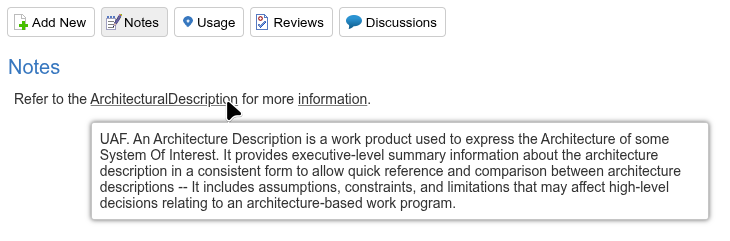
When the 'Highlight Glossary Terms in Notes' option is enabled, if you view an element's notes within WebEA then Glossary terms will be underlined. If you place the cursor over the underlined term then a Tooltip will appear with the term's meaning.
Notes
- The Glossary view is enabled by default for each WebEA Model Connection (defined in the webea_config.ini file). You can disable the Glossary via the WebEA configuration's "Show Glossary View" option.
- The 'Highlight Glossary Terms in Notes' option is off by default for each WebEA Model Connection. You can change this via the WebEA configuration's "Highlight Glossary Terms" option